

Android入门第50天-读写本地文件
创始人
2024-05-01 02:56:29
简介
为了这个系列,我的代码已经准备到了第150天了。接下来的内容会越来越精彩,我们也越来越开始进入Android的一些高级功能上的编程了。今天我们就要讲Android中对本地文件进行读写的全过程。
课程目标
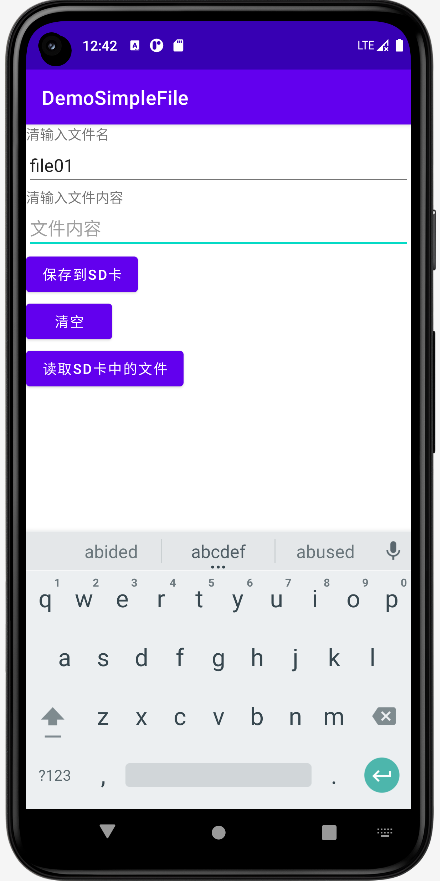
- 输入文件名、输入文件内容后按【保存到SD卡】,可以把文件保存到SD卡根目录;
- 输入文件名,按【读取SD卡中的文件】,可以根据输入的文件名把文件内容显示成Toast;
- 搞清Android中对于SD卡读写时所需要的静态权限申请、动态权限申请;
以上一共我们有3个目标,根据目标下面开始教程。
UI端
activity_main.xml
我们的UI端很简单,用LinearLayout从上到下依次把一系列元素都设置好。接着我们来看我们的后端代码。
静态授权-AndroidManifest.xml文件内容
注意以上的6行

后端代码
文件读写帮助类-SDFileUtility.java
package org.mk.android.demo;import android.content.Context;
import android.os.Environment;
import android.util.Log;
import android.widget.Toast;import java.io.FileInputStream;
import java.io.FileOutputStream;
import java.io.IOException;public class SDFileUtility {private final static String TAG = "DemoSimpleFile";private Context context;public SDFileUtility() {}public SDFileUtility(Context context) {super();this.context = context;}//往SD卡写入文件的方法public void savaFileToSD(String fileName, String fileContents) throws Exception {//如果手机已插入sd卡,且app具有读写sd卡的权限if (Environment.getExternalStorageState().equals(Environment.MEDIA_MOUNTED)) {fileName = Environment.getExternalStorageDirectory().getCanonicalPath() + "/" + fileName;//这里就不要用openFileOutput了,那个是往手机内存中写数据的FileOutputStream output = null;try {output = new FileOutputStream(fileName);output.write(fileContents.getBytes());//将String字符串以字节流的形式写入到输出流中} catch (Exception e) {Log.e(TAG, "saveFileTOSD error: " + e.getMessage(), e);} finally {try {output.close();//关闭输出流} catch (Exception e) {}}} else Toast.makeText(context, "SD卡不存在或者不可读写", Toast.LENGTH_SHORT).show();}//读取SD卡中文件的方法//定义读取文件的方法:public String readFromSD(String fileName) throws IOException {StringBuilder sb = new StringBuilder("");if (Environment.getExternalStorageState().equals(Environment.MEDIA_MOUNTED)) {fileName = Environment.getExternalStorageDirectory().getCanonicalPath() + "/" + fileName;FileInputStream input = null;try {//打开文件输入流input = new FileInputStream(fileName);byte[] temp = new byte[1024];int len = 0;//读取文件内容:while ((len = input.read(temp)) > 0) {sb.append(new String(temp, 0, len));}} catch (Exception e) {Log.e(TAG, "readFromSD error: " + e.getMessage(), e);} finally {try {//关闭输入流input.close();} catch (Exception e) {}}}return sb.toString();}
}
后端主交互类-MainActivity.java
package org.mk.android.demo;import androidx.annotation.NonNull;
import androidx.appcompat.app.AppCompatActivity;
import androidx.core.app.ActivityCompat;
import androidx.core.content.ContextCompat;import android.Manifest;
import android.app.AlertDialog;
import android.content.Context;
import android.content.DialogInterface;
import android.content.Intent;
import android.content.pm.PackageManager;
import android.os.Build;
import android.os.Bundle;
import android.os.Environment;
import android.provider.Settings;
import android.util.Log;
import android.view.View;
import android.widget.Button;
import android.widget.EditText;
import android.widget.Toast;public class MainActivity extends AppCompatActivity implements View.OnClickListener {private EditText editFileName;private EditText editContents;private Button buttonSave;private Button buttonClean;private Button buttonRead;private Context mContext;private final static String TAG = "DemoSimpleFile";@Overrideprotected void onCreate(Bundle savedInstanceState) {super.onCreate(savedInstanceState);setContentView(R.layout.activity_main);mContext = getApplicationContext();bindViews();}private void bindViews() {editFileName = (EditText) findViewById(R.id.editFileName);editContents = (EditText) findViewById(R.id.editFileContents);buttonSave = (Button) findViewById(R.id.buttonSave);buttonClean = (Button) findViewById(R.id.buttonClean);buttonRead = (Button) findViewById(R.id.buttonRead);buttonSave.setOnClickListener(this);buttonClean.setOnClickListener(this);buttonRead.setOnClickListener(this);}@Overridepublic void onClick(View v) {switch (v.getId()) {case R.id.buttonClean:editContents.setText("");editFileName.setText("");break;case R.id.buttonSave:if (Build.VERSION.SDK_INT>=Build.VERSION_CODES.R) {Log.i(TAG,">>>>>>version.SDK->"+Build.VERSION.SDK_INT);if (!Environment.isExternalStorageManager()) {Intent intent = new Intent(Settings.ACTION_MANAGE_ALL_FILES_ACCESS_PERMISSION);this.startActivity(intent);return;}}Log.i(TAG,">>>>>>start to writeFile");writeFile();Log.i(TAG,">>>>>>write success");break;case R.id.buttonRead:if (Build.VERSION.SDK_INT>=Build.VERSION_CODES.R) {Log.i(TAG,">>>>>>version.SDK->"+Build.VERSION.SDK_INT);if (!Environment.isExternalStorageManager()) {Intent intent = new Intent(Settings.ACTION_MANAGE_ALL_FILES_ACCESS_PERMISSION);this.startActivity(intent);return;}}Log.i(TAG,">>>>>>start to readFile");readFile();Log.i(TAG,">>>>>>read success");break;}}@Overridepublic void onRequestPermissionsResult(int requestCode, @NonNull String[] permissions, @NonNull int[] grantResults) {super.onRequestPermissionsResult(requestCode, permissions, grantResults);if (requestCode == 1 && (grantResults[0] == PackageManager.PERMISSION_GRANTED)) {//writeFile();Log.i(TAG,">>>>>>onRequestPermissionsResult");}}private void writeFile() {String fileName = editFileName.getText().toString();String fileContents = editContents.getText().toString();SDFileUtility sdHelper = new SDFileUtility(mContext);try {sdHelper.savaFileToSD(fileName, fileContents);Toast.makeText(getApplicationContext(), "数据写入成功", Toast.LENGTH_SHORT).show();} catch (Exception e) {Log.e(TAG, "save contents into file has errors: " + e.getMessage(), e);Toast.makeText(getApplicationContext(), "数据写入失败", Toast.LENGTH_SHORT).show();}}private void readFile() {String detail = "";SDFileUtility sdHelper2 = new SDFileUtility(mContext);try {String fileName2 = editFileName.getText().toString();detail = sdHelper2.readFromSD(fileName2);} catch (Exception e) {Log.e(TAG, "read contents from file has errors: " + e.getMessage(), e);}Toast.makeText(getApplicationContext(), detail, Toast.LENGTH_SHORT).show();}
}
核心代码导读
读写手机SD卡,我们除了在AndroidManifest.xml文件中静态申请权限外还需要使用代码动态申请权限,这是Android6后的权限限制带来的问题。
case R.id.buttonSave:if (Build.VERSION.SDK_INT>=Build.VERSION_CODES.R) {Log.i(TAG,">>>>>>version.SDK->"+Build.VERSION.SDK_INT);if (!Environment.isExternalStorageManager()) {Intent intent = new Intent(Settings.ACTION_MANAGE_ALL_FILES_ACCESS_PERMISSION);his.startActivity(intent);return;}}这一段代码就是使用代码在写文件前动态申请权限用的,当这段代码执行后会弹出以下这样的一个对话框

点击这个APP应用,然后来到第二个对话框
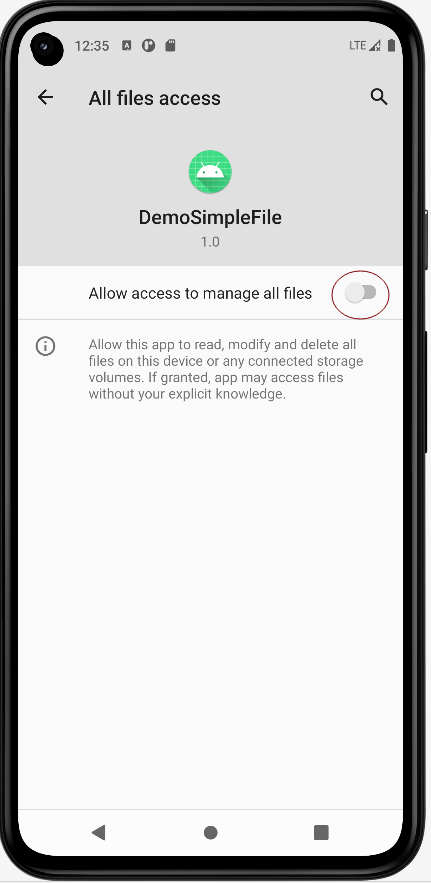
点击我红圈处标出的开关按钮

然后重新运行APP即可。
运行效果


相关内容
热门资讯
华盛锂电股价涨5.01%,华泰...
1月16日,华盛锂电涨5.01%,截至发稿,报111.87元/股,成交2.95亿元,换手率1.68%...
1月15日南方国证在线消费ET...
数据显示,1月15日,南方国证在线消费ETF(159728)获净申购226.23万元,位居当日股票E...
华盛锂电股价涨5.01%,富荣...
1月16日,华盛锂电涨5.01%,截至发稿,报111.87元/股,成交2.98亿元,换手率1.70%...
物流快递(516530)已连续...
数据显示,1月15日,物流快递(516530)遭净赎回49.27万元,位居当日股票ETF净流出排名4...
中微公司股价涨5.07%,博道...
1月16日,中微公司涨5.07%,截至发稿,报389.82元/股,成交23.97亿元,换手率0.99...